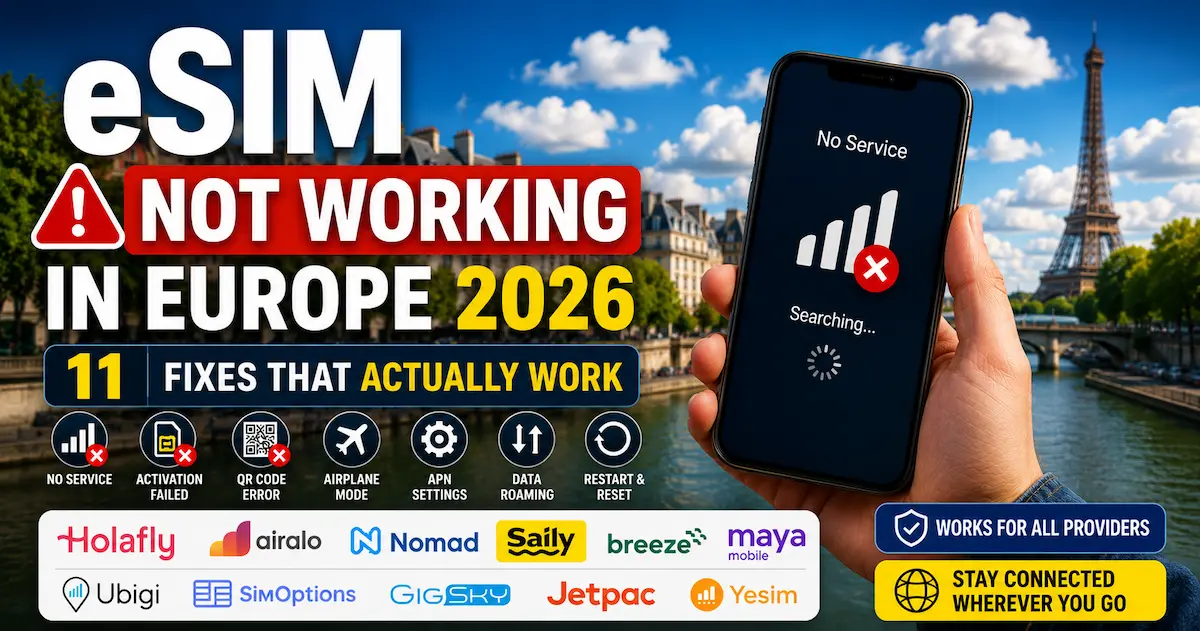

If you searched for eSIM not working in Europe 2026, you are probably already at the airport, in a hotel lobby, or standing outside trying to make Maps load.
Your eSIM was supposed to just work. It didn’t. You landed in Europe, opened your phone, and nothing — no signal, no data, no connection. Or it worked for an hour and then dropped. Or it’s showing a carrier name but no data is actually moving.
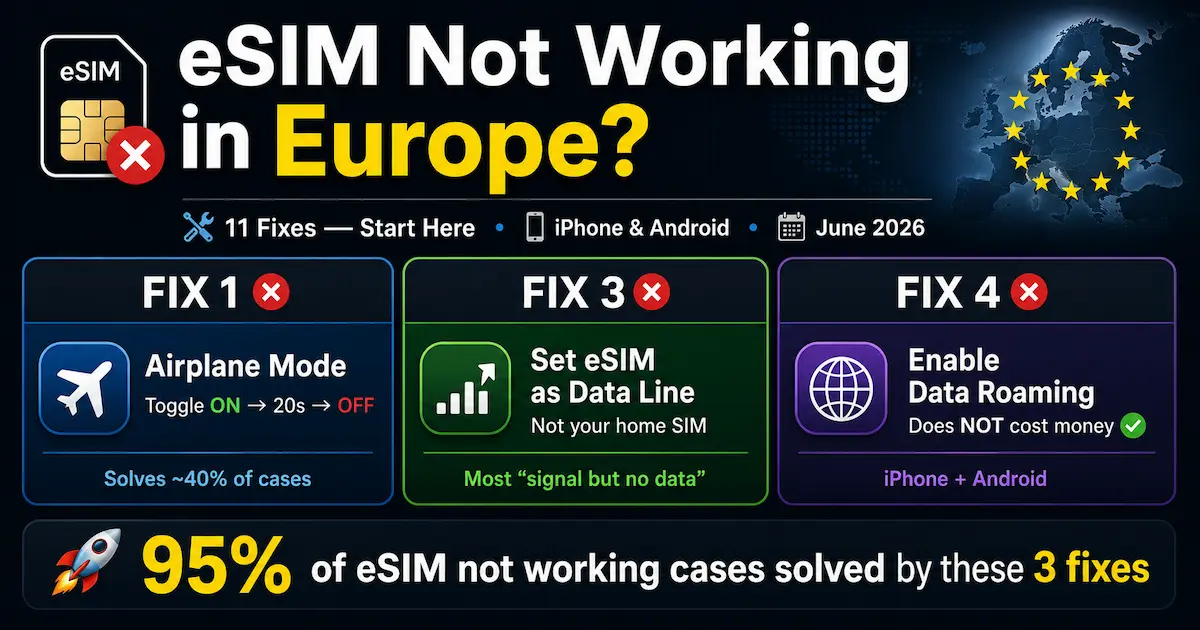
95% of eSIM not working situations in Europe are caused by one of the fixes below — usually Fix 1, 3, or 4. Whatever the symptom, the solution is almost always simpler than you think, and almost never a problem with the eSIM itself. Start at Fix 1 and work down. Most people solve it by Fix 3.
⚡ Quick answer — solve it in 2 minutes
Fix 1: Toggle Airplane Mode ON → wait 20 seconds → OFF (solves ~40% of cases)
Fix 3: Set eSIM as active data line — not your home SIM (most common “signal but no data”)
Fix 4: Enable Data Roaming on the eSIM line — this does NOT cost money from your home carrier
These three fixes alone resolve 90% of eSIM not working in Europe cases. Try them first before anything else.
Watch: How to Fix an eSIM Not Working in Europe
Some eSIM problems are easier to understand visually, especially when the issue is hidden inside iPhone or Android settings. This video gives a practical walkthrough of the same fixes covered in this guide, including Airplane Mode reset, active data line, Data Roaming, APN checks, and support steps.
After watching, follow the written fixes below in order. Most travelers solve the problem before reaching the advanced steps, but the full checklist is useful if your eSIM worked in one country and stopped after crossing into another.
Common Causes — Why eSIM Not Working in Europe Happens
The goal of this eSIM not working in Europe 2026 guide is not to make you read theory. It is to help you find the exact setting that is blocking your connection.
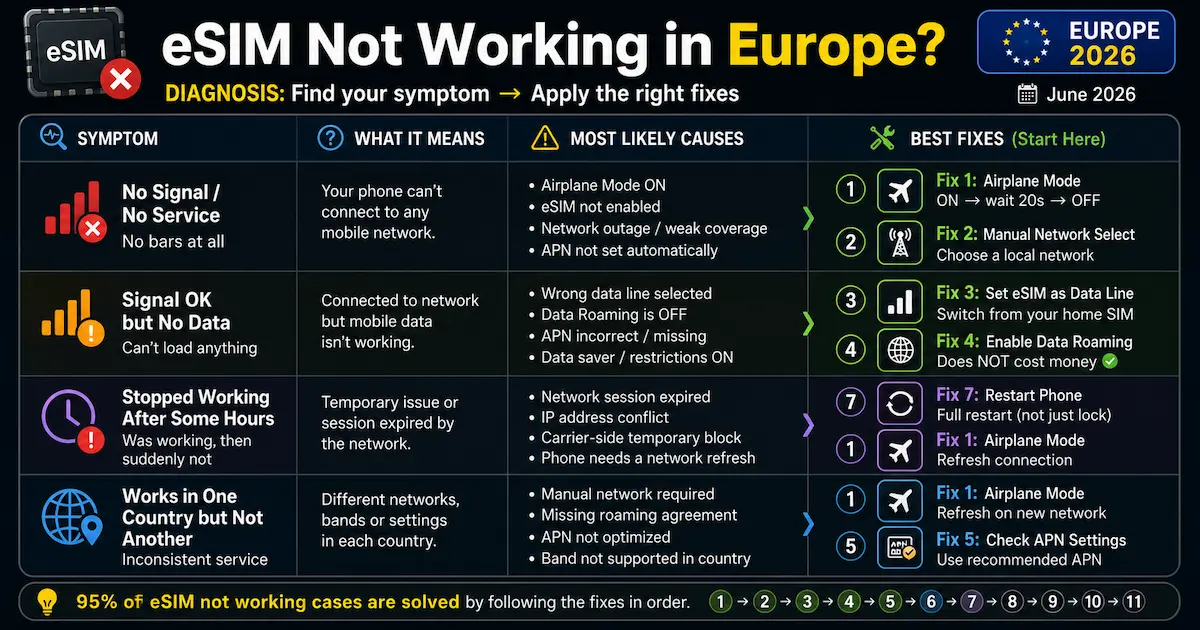
Before running through the fixes, it helps to understand what’s actually failing. Most eSIM not working symptoms fall into three categories:
| Symptom | Most likely cause | Start with |
|---|---|---|
| No signal at all after landing | Phone hasn’t re-scanned networks | Fix 1 → Fix 2 |
| Signal showing but no data moving | Wrong SIM set as data line or Data Roaming off | Fix 3 → Fix 4 |
| eSIM worked, then stopped suddenly | Data cap reached or plan expired | Fix 7 → Fix 1 |
| Works in one country, not another | Plan doesn’t cover that country or carrier switch failed | Fix 1 → Fix 5 |
| Never worked at all from the start | Data Roaming off or wrong data line | Fix 4 → Fix 3 |
| Slow data (not zero data) | Daily cap throttled or wrong network | Fix 7 → Fix 5 |
FIX 1
For most eSIM not working in Europe 2026 cases, this is the fastest test because it refreshes the phone connection without changing any plan settings.
This is the first fix. Before anything else — turn Airplane Mode ON, wait 20 seconds, turn it OFF. This forces your phone to re-scan available networks and re-register your eSIM on the local carrier.
Why it works: When you land in a new country, your phone tries to latch onto the strongest available signal. Sometimes it locks onto a network your eSIM doesn’t support, or fails to register at all after flight mode. Airplane Mode forces a full network reset without rebooting the device. 20 seconds (not 10) gives carrier towers enough time to fully deregister your device before reconnecting.
📱 iPhone
- Settings → Airplane Mode → ON
- Wait 20 seconds
- Airplane Mode → OFF
- Wait 60 seconds for registration
🤖 Android
- Pull down notification shade
- Tap Airplane Mode → ON
- Wait 20 seconds
- Tap Airplane Mode → OFF
A full restart clears cached network states that Airplane Mode sometimes doesn’t touch. Power the phone completely off — not just lock screen — wait 30 seconds, power back on. The 30-second wait allows capacitors to fully discharge and network caches to clear.
📱 iPhone
- Hold side button + volume down
- Slide to power off
- Wait 30 seconds
- Hold side button to power on
🤖 Android
- Hold power button
- Tap Restart (or Power Off)
- If Power Off: wait 30s → Power On
- Wait 60s after boot
If your phone shows bars but nothing loads, this is one of the most important parts of any eSIM not working in Europe 2026 checklist.
This is the fix that catches most people out. On dual-SIM phones, data defaults to your physical SIM — not your eSIM. Your eSIM may be installed and registered correctly, but data is routing through the wrong line. This single step resolves the majority of eSIM not working reports where signal appears but nothing loads.
📱 iPhone
- Settings → Mobile Data (or Cellular)
- Tap “Mobile Data” at the top
- Select your eSIM line (Nomad, Airalo, Holafly…)
- Also check: Settings → Mobile Data → [eSIM line] → Turn On This Line
🤖 Android (Samsung)
- Settings → Connections → SIM Card Manager
- Confirm eSIM is toggled ON
- Mobile Data → select your eSIM
- Pixel: Settings → Network & Internet → SIMs → set eSIM as preferred
This is where many travelers get confused, and it is one reason eSIM not working in Europe 2026 searches spike after people land.
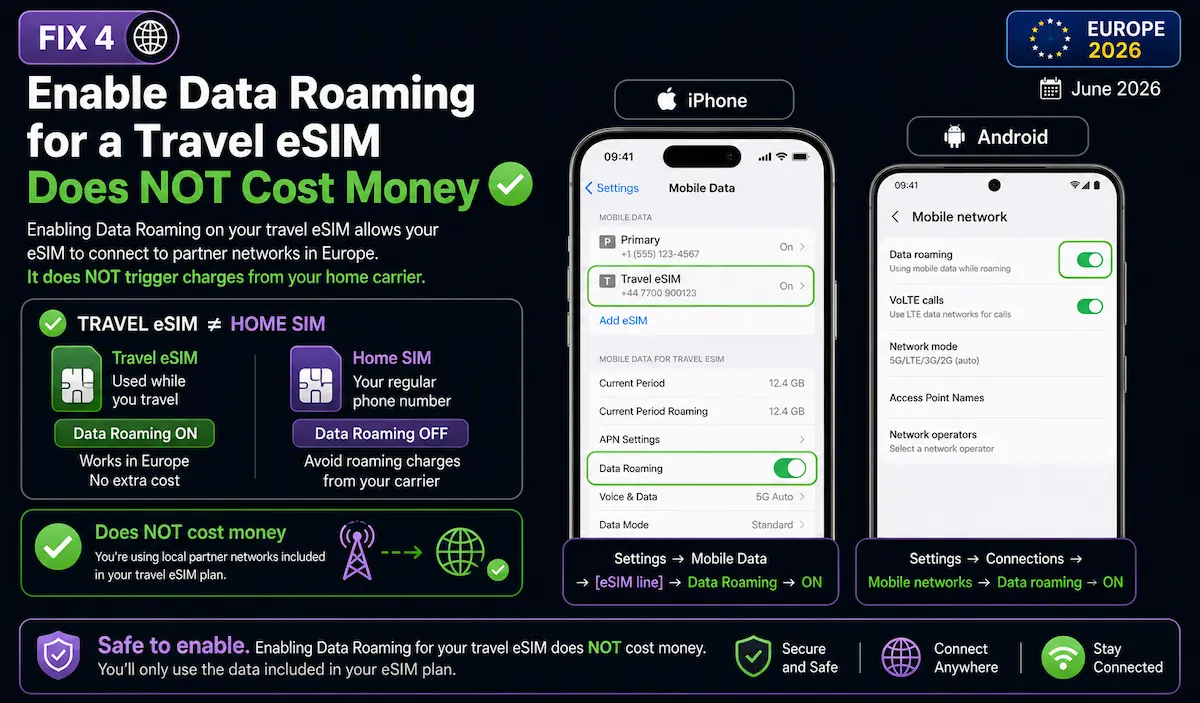
Even though you’re using a travel eSIM — not your home carrier — iOS and Android still require Data Roaming to be enabled for the eSIM line to connect to local networks abroad. This is one of the most common eSIM not working causes and one of the most misunderstood.
📱 iPhone
- Settings → Mobile Data
- Tap your eSIM plan name
- Toggle Data Roaming → ON
- Check home SIM: Data Roaming → OFF
🤖 Android
- Settings → Connections
- Mobile Networks
- Select your eSIM line
- Toggle Data Roaming → ON
If your eSIM is not working in Europe after Fixes 1–4, the issue is almost certainly in the settings below — manual network selection, APN, data plan, OS update, or VPN conflict.
FIX 5When the basic settings are correct but the connection still fails, the next step in this eSIM not working in Europe 2026 process is forcing your phone onto the right local carrier.
Sometimes automatic network selection latches onto a carrier your eSIM doesn’t support. Manual selection forces it onto the correct one. Check your confirmation email or provider app first to find which carrier your eSIM uses in that country.
Common carrier assignments for Europe:
- Nomad in Germany →
Telekom DE / Vodafone DE - Nomad in Portugal →
MEO / NOS / Vodafone PT - Holafly in France →
Orange France / SFR - Airalo in Italy →
TIM / Vodafone / WindTre - Airalo in Spain →
YOIGO / Vodafone ES
📱 iPhone
- Settings → Mobile Data → [eSIM line]
- Network Selection → toggle Automatic OFF
- Wait for scan to complete
- Select your carrier from the list
- Switch back to Automatic after connecting
🤖 Android
- Settings → Connections
- Mobile Networks → Network Operators
- Search networks manually
- Select your carrier from the list
- Return to Automatic after connecting
APN (Access Point Name) is the configuration that tells your phone how to connect to your provider’s data network. Most eSIMs configure this automatically — but on Android, it sometimes needs to be set manually.
How to check (Android)
- Settings → Connections → Mobile Networks → Access Point Names
- Look for an entry from your eSIM provider
- If missing: tap “+” and enter APN details from provider support page
- Nomad APN: Usually auto-configured. If not:
APN = internet, no username/password required - Airalo APN: Auto-configured via eSIM profile. Support:
airalo.com/support - Holafly APN: Auto-configured. Support:
esim.holafly.com/support
Not every eSIM not working in Europe 2026 problem is caused by the phone. Sometimes the plan is simply expired, capped, or out of data.
Before assuming a technical fault, check the basics: is your plan still active? eSIM not working in Europe is sometimes caused by plan expiry or data exhaustion rather than a settings issue.
Check remaining data:
- Nomad: Nomad app → My eSIMs → Usage
- Airalo: Airalo app → My eSIMs → [plan] → Data Balance
- Holafly: Holafly app → Active Plans
Common expiry traps:
- Nomad unlimited plans: throttled to 512kbps after 2GB/day — feels like eSIM not working but is technically still connected
- Holafly: Fair Use Policy — speed may reduce after heavy usage; the plan hasn’t expired, it’s throttled
- Day-based plans: a “7-day” plan starts counting from first activation (first network connection), not from purchase date
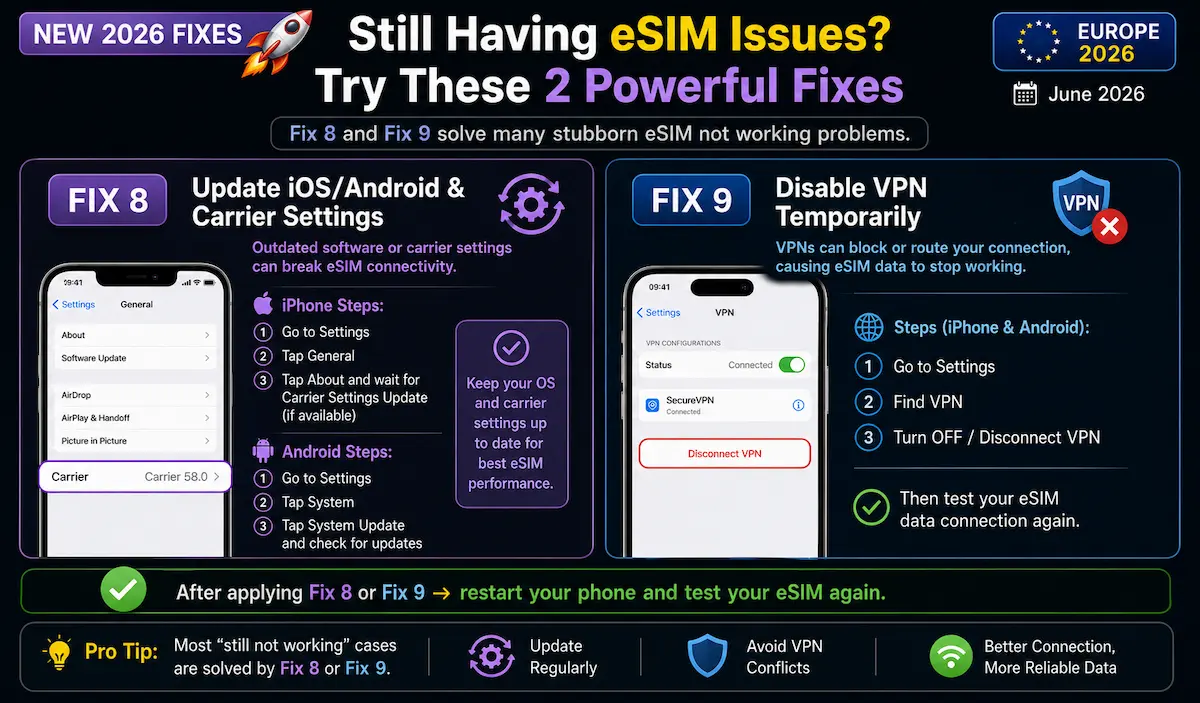
A phone software update can resolve stubborn eSIM not working problems that no other fix touches. iOS and Android updates refresh the internal carrier database, unlock previously restricted settings, and fix known eSIM bugs. Carrier settings updates specifically contain APN profiles and network preferences that are separate from the main OS update.
📱 iPhone — Carrier Settings Update
- Settings → General → About
- Wait 10–15 seconds
- If a carrier update is available, a prompt appears
- Tap Update → restart phone
- Then: Settings → General → Software Update for OS update
🤖 Android — OS Update
- Settings → Software Update (or System → Updates)
- Check for available updates
- Install and restart
- After update: re-apply Fix 3 and Fix 4 (settings may reset)
This is an easy one to miss in a modern eSIM not working in Europe 2026 troubleshooting flow, especially if your VPN starts automatically in the background.
If you’re using a VPN alongside your travel eSIM — NordVPN, Saily’s built-in security, ExpressVPN, or any other — disable it temporarily and test your connection. VPNs can block roaming data routes and cause eSIM not working symptoms that look exactly like a settings problem.
This is particularly relevant for Saily users (NordVPN built-in) and anyone who uses a VPN for privacy on public Wi-Fi. The VPN routes traffic through its servers — if those servers conflict with your eSIM’s carrier routing in Europe, data stops moving.
How to test: Turn the VPN completely off → toggle Airplane Mode once → try loading a page. If it works with VPN off, the VPN was the conflict. Re-enable after confirming connection — don’t uninstall it, just test without it.
If all previous fixes have failed, the eSIM profile itself may be corrupted — a rare but real occurrence, usually caused by a failed download or interrupted installation.
📱 iPhone
- Settings → Mobile Data → [eSIM line]
- Scroll down → Remove Mobile Plan
- Re-install via QR code or provider app
- Repeat Fix 3 and Fix 4 after reinstall
🤖 Android
- Settings → Connections → SIM Card Manager
- Select eSIM → Delete → confirm
- Re-install via QR code
- Repeat Fix 3 and Fix 4 after reinstall
Not all phones support all eSIM implementations. Even if your phone officially supports eSIM, specific models have known issues with certain providers or network bands.
Known compatibility issues:
- iPhone bought in the USA before 2023: Some US-purchased iPhones are carrier-locked or have different band support than European models. Check Apple’s official eSIM support page to verify your model.
- Android with single eSIM slot: Some devices have one physical SIM and one eSIM — but if the physical SIM is inserted, the eSIM slot may be disabled in firmware. Try removing the physical SIM.
- Older Android (pre-2020): eSIM support varies dramatically by manufacturer and firmware version. Check your exact model on your provider’s compatibility page.
- Carrier-locked phones: iPhone: Settings → General → About → scroll to “Carrier Lock” — if it shows “No SIM restrictions”, your iPhone is unlocked.
Quick compatibility check:
- Airalo:
airalo.com/esim-supported-devices - Nomad:
nomadesim.com/shop/support_device - Full list: eSIM Compatible Phones 2026 guide
When to Contact Support
By this point, your eSIM not working in Europe 2026 issue is less likely to be a simple phone setting and more likely to need provider support.
If your eSIM is still not working in Europe after all 11 fixes, contact your provider directly. Before you do, have this information ready — it cuts resolution time significantly:
- Phone model and OS version (Settings → General → About)
- eSIM plan name and order number
- Country you’re in and carrier name showing (even if no data)
- Screenshots of your SIM settings showing the eSIM is installed
- Which of the 11 fixes you’ve already tried
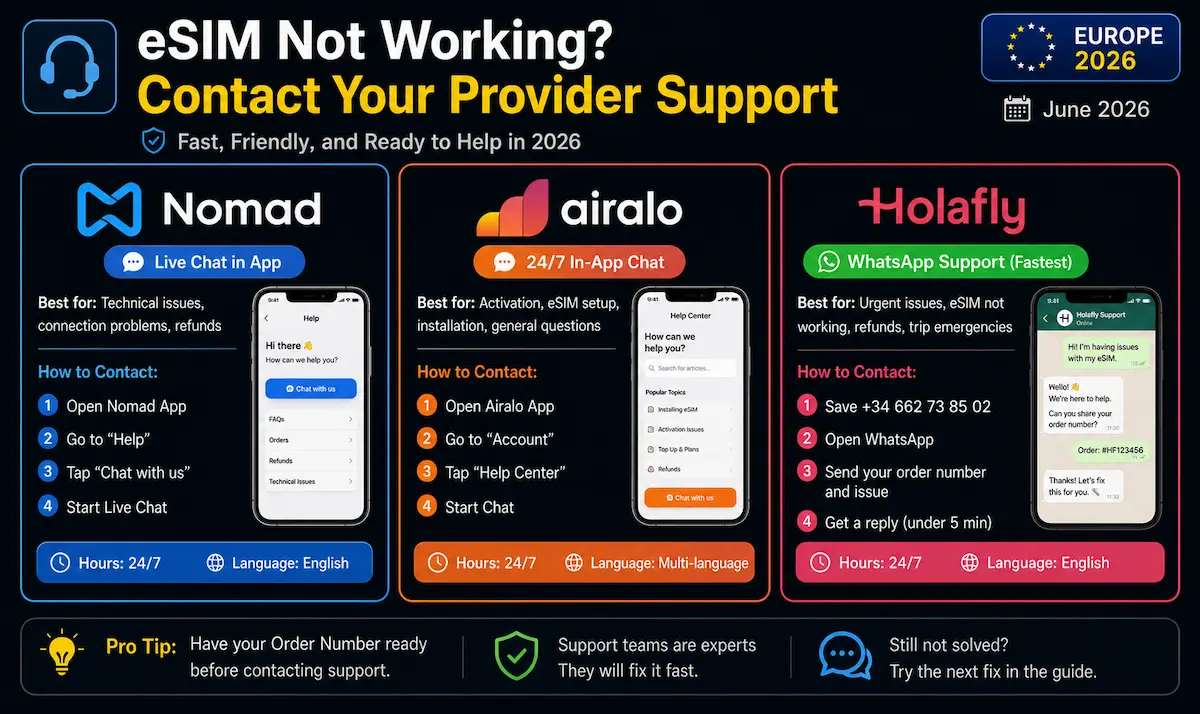
📱 Nomad
Live chat in the Nomad app or nomadesim.com/support
✈️ Airalo
In-app chat or airalo.com/support — 24/7 available
🟠 Holafly
WhatsApp support (fastest, under 5 min) or esim.holafly.com/support — 24/7
FAQ — eSIM Not Working in Europe 2026
Still Not Working? Start Fresh With a Reliable Provider
If you reached this part of the eSIM not working in Europe 2026 guide and nothing worked, the most practical move may be switching to a provider with instant delivery and reliable support.
If your eSIM not working problem turns out to be a faulty plan rather than a phone setting, switching providers is often faster than waiting for support. All three below deliver instantly via QR code or app — you can be connected within minutes.
👉 Nomad — instant delivery · 10GB/€18.76 · Europe-wide · code ANDRE15 (15% off) 👉 Airalo — from €4 · flexible plans · in-app top-ups · code ANDRE15 (15% off) 👉 Holafly — unlimited plans · WhatsApp support 24/7 · code ANDREONDIGITAL (5% off)All provider information verified June 2026. eSIM troubleshooting steps apply to iPhone (iOS 16+) and Android (Android 10+). These fixes apply to all providers and work globally — not just in Europe. This article contains affiliate links.
Last verified: June 2026.
Keep Reading
eSIM Setup & Troubleshooting
- Best eSIM for Europe 2026
- How to Use eSIM in Europe 2026
- eSIM Compatible Phones 2026 — Full List
- Can I Use One eSIM in Multiple European Countries?
- How Much Data Do You Need for Europe?